To delete a Google Business Profile you manage, go to your Business Profile, select More, then Business Profile settings, then Remove Business Profile, then Remove profile content and managers, and confirm with Continue, Remove and Done. Here is the part that surprises most owners: that does not delete the business from Google Maps. Google says removing the profile “doesn’t guarantee that the business won’t show up on Maps and Search.” It removes your management and your content. The listing itself can stay.
So “delete” can mean three different things on Google, and picking the wrong one is how businesses lose reviews they meant to keep. If you want to stop managing a profile, you remove it from your account. If you want the place gone from Maps, you request removal through Maps. If you have two listings for one business, you usually want neither of those: you want a merge, which is the only path where Google says the reviews are combined. Below are Google’s steps for each, quoted from Google’s help center, and exactly what Google says happens to your reviews in each case.
Key takeaways
- Removing a profile from your account deletes owner content, not the listing. Google: “Any posts, photos, videos, and review replies by owners and managers are permanently removed,” while “user-generated content and review remains” (Google).
- To get a place off Maps, use Suggest an edit > Place is closed or not here on Google Maps. If Google approves, “the business will be removed from Search and Maps” (Google).
- For duplicates of the same business, request a merge. Google says merged profiles have “their reviews combined, but replies to reviews may be lost” (Google).
- A business that closed for good should be marked Permanently closed, not deleted. A business that moved should update its address, not open a new profile.
- Only the primary owner can remove profile content and managers, and new owners wait 7 days first.
First, decide which “delete” you actually need
The most common mistake is using the account-removal button to solve a Maps problem, or the reverse. Match your situation to the right tool before you click anything:
| Your situation | What to do | What Google says happens to reviews |
|---|---|---|
| You no longer want to manage a profile | Remove it from your account, or transfer primary ownership | Reviews remain on the listing |
| You created a duplicate of your own verified profile by mistake | Remove the duplicate from your account | Google says user reviews remain on the listing after you remove it from your account; a listing Google treats as a duplicate may not show on Search or Maps |
| Two public listings exist for the same business | Request a merge through Google Maps | “Reviews are combined, but replies to reviews may be lost” |
| The business closed for good | Mark it Permanently closed | Google does not say reviews are removed |
| The business moved | Edit the address on the existing profile | Same profile, so nothing changes |
| A listing is fake or never existed | Request removal on Google Maps | If approved, the listing is removed from Search and Maps |
| You are selling or handing over the business | Transfer primary ownership | Google says this keeps “all of your business info, like reviews” |
Sources: Google Business Profile Help pages linked in each section below.
How to remove a Google Business Profile from your account
This is the action most people mean by “delete my Google Business Profile.” Google’s steps (Google):
- “Go to your Business Profile.” You must be signed in to the Google Account associated with it.
- “Select More > Business Profile settings.”
- “Select Remove Business Profile > Remove profile content and managers.”
- “Select Continue > Remove > Done.”
On step 3 there is an optional switch: Mark your business as permanently closed. Turn it on only if the business really is closed. Google says if you do, “it won’t disappear from Maps right away. It will slowly disappear from search results and then be completely removed.”
What removal deletes and what it leaves
Google is specific about this, so it is worth reading slowly before you confirm (Google):
- “Removal of content and managers for a Business Profile is permanent and affects all owners and managers.”
- “Any posts, photos, videos, and review replies by owners and managers are permanently removed.”
- “User-generated content and review remains.”
- “After the content is removed, it can’t be recovered or managed. To manage your business again, you must re-verify your Business Profile.”
- “After removal, your business might still show up on Search and Maps, unless it’s considered ineligible business.”
Put plainly: removal deletes your side of the conversation (your photos, your posts, every reply you ever wrote to a review) and leaves the customers’ side in place. If you remove a profile thinking it will clear a bad review, it will not. It will clear your reply to that review.
Who is allowed to remove a profile
Google says “only the primary owners can remove the profile content and managers,” and “new owners and managers must wait 7 days before they can remove profile content or managers” (Google). Managers cannot remove profiles at all. If the remove option is missing for you, check your role under People and access; our guide to adding and removing managers on a Google Business Profile covers the roles and how to transfer primary ownership.
Removing several profiles at once
If you manage multiple locations, Google’s bulk steps are:
- “Go to the Business Profile Manager.”
- “In the Business Profile Manager, select the profiles you want to remove.”
- “At the top right, select Actions > Remove businesses > Remove.”
Google adds that “if you encounter an error when you remove multiple profiles, you must remove content and managers for each profile.”
How to remove a business from Google Maps and Search
If the goal is for the listing to stop appearing, that is a different request, and you do not need to own the profile to make it. Google says “you can request a business to be removed, even if you don’t own the Business Profile,” and that “a business can be removed from Google if it never existed or isn’t eligible to be on Google” (Google).
Google’s steps, which work on Google Maps in a browser or in the Google Maps app (you must be signed in):
- “Go to Google Maps or open the Google Maps app.”
- “On the map, select the business you want to remove.”
- “Click Suggest an edit > Place is closed or not here.”
- “Select the appropriate option.” Google’s examples are “Doesn’t exist here” and “Offensive, harmful, or misleading.”
- “Click Submit.”
After you submit, “you might receive a status email with follow-up questions. If the request is approved, the business will be removed from Search and Maps.”
Note the condition. This path is for listings that never existed or are not eligible. A real business that closed is not a “doesn’t exist” case, it is a “permanently closed” case, covered below.
How to fix a duplicate Google Business Profile
Google’s rule is short: “You can have only one Business Profile for each business. Multiple profiles for the same business may mislead your customers and are against our policies. If a profile is considered a duplicate, it won’t show on Google Search or Maps” (Google).
That last sentence is behind many “my business disappeared” moments. When Google decides two profiles are the same business, one of them stops showing. Google lists three common reasons a profile is treated as a duplicate: a verified profile “already exists for the same business,” “multiple profiles have the same address,” or “multiple profiles exist for the same business that offer different services.” If your listing vanished and you are not sure why, our guide to why your business is not showing up on Google walks through duplicates alongside the other causes.
There are two fixes, and they produce very different results for your reviews.
Option 1: Merge the duplicates (keeps the reviews)
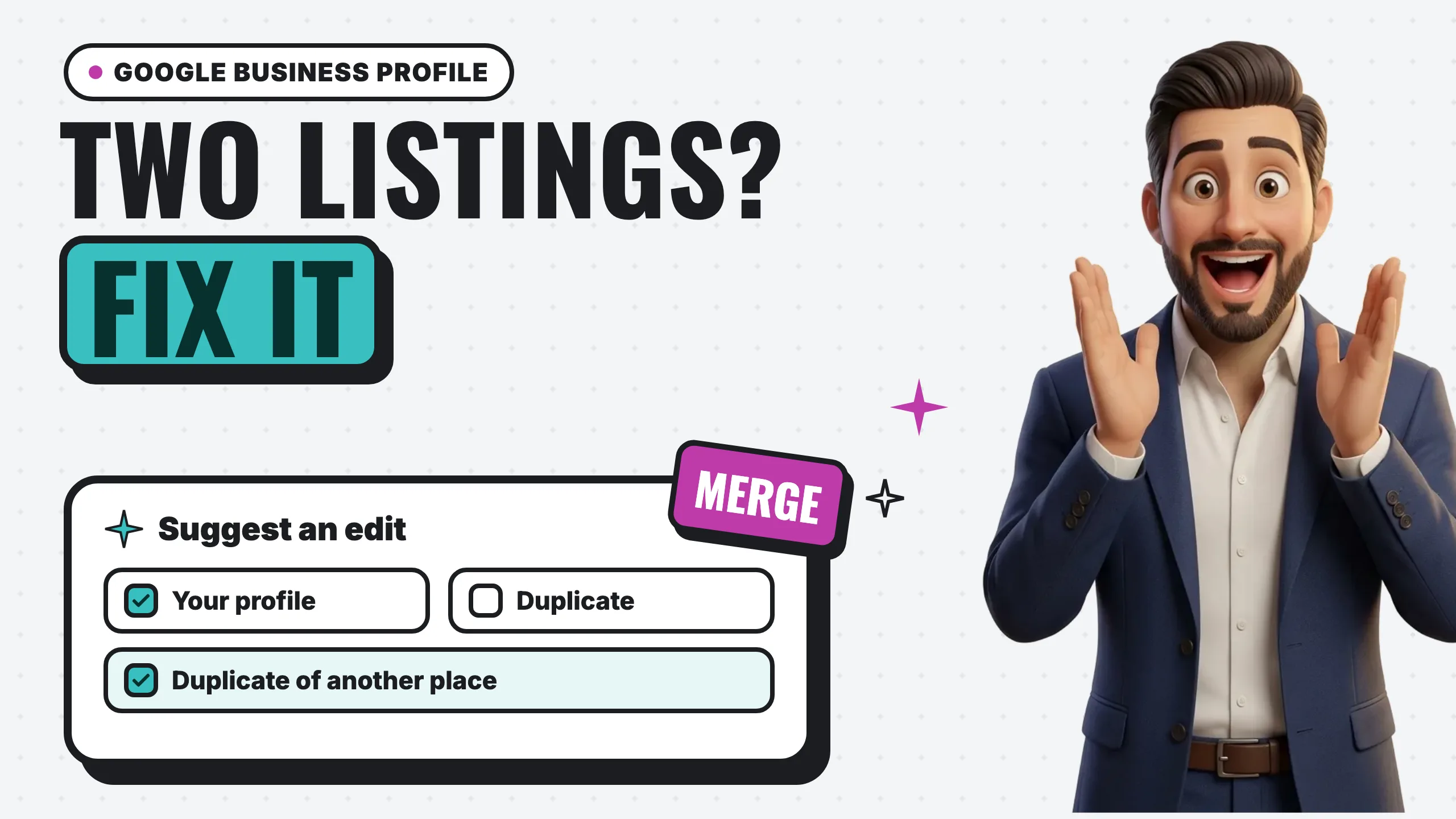
Use this when two or more public listings exist for the same business on Maps and you want one profile with everything in it. Google says: “To request a merge when 2 or more Business Profiles for the same business exist on Maps, report a suggestion on Google Maps. All merge requests are subject to review” (Google).
The Maps steps for that report (Google Maps Help):
- “Open Google Maps.”
- “Search for a place or select it on the map.”
- “Select Suggest an edit > Place closed or not here.”
- “Select Duplicate of another place > Submit.”
What happens to reviews, in Google’s words: “When 2 profiles are merged, their reviews are combined, but replies to reviews may be lost. For the merge to be successful, the profiles must represent the same business and should have the same info.”
That last condition is practical advice. Before you report the duplicate, make the name, address and phone number on both listings match as closely as the truth allows, so the reviewer sees two copies of one business rather than two businesses.
Google also notes that “we review your edits, so it can take some time for your changes to show on the map.” Google does not publish a timeline for merge reviews.
Option 2: Remove the duplicate you created (reviews stay behind)
Use this when you accidentally created a second profile for a business you already verified, and the extra one has nothing worth keeping. Google says: “If you created a duplicate profile by mistake, you can remove it without affecting your verified listing” (Google).
Follow the account-removal steps above on the duplicate. Google’s warning applies with extra force here: “When you remove a duplicate profile, all content and linked managers will be removed, so make sure to remove the correct profile.” Open both profiles side by side, confirm which one is verified and which one holds your reviews, and remove the other.
If the duplicate has reviews you want, removing it does not move them anywhere. Google’s removal page says reviews remain on the listing, and merging is the only path where Google says reviews are combined. In that case, use Option 1.
When the duplicate belongs to someone else
If the extra listing is verified and controlled by a former employee, an old vendor, or a previous owner, you can request access through Google’s ownership process at business.google.com/add. The current owner “has 3 days to respond,” and if they do not, “you may have the option to claim the profile,” though Google notes “the option to claim a profile isn’t always available” (Google). Claiming means verifying it yourself; our guides to verifying your business on Google and video verification cover that step.
When Google wrongly treats two businesses as one
Sometimes it goes the other way: two real, separate businesses at one address get merged or flagged. Google says “if Business Profiles for 2 distinct and eligible businesses were incorrectly merged, contact support to appeal the duplicate status.” Both must be eligible and distinct, and if they serve customers at the same location, “you’ll be asked to provide evidence of permanent signage that clearly shows both businesses” (Google).
Closed or moved? Do not delete the profile
Two situations generate a lot of unnecessary deletions.
The business closed for good
Mark it closed instead of deleting it. Google’s steps (Google):
- “Go to your Business Profile.”
- “Select Edit profile > Hours.”
- “In the ‘Business hours’ section, next to ‘Hours,’ select Edit > Permanently closed.”
- “Select Save.”
Google says that “if you mark a business as permanently closed, your Business Profile may still appear on Search and Maps for users who search for it. It clearly shows that your business is closed.” That is the honest outcome for customers who search for you by name: they learn you closed instead of driving to an empty storefront. Google’s help pages on closing a business do not say that marking it closed removes reviews, so we will not claim it does.
If you close for more than 7 days but plan to reopen, Google offers Temporarily closed instead, and it says closures of 7 days or less should use special hours. If a business is marked closed by mistake, Google has a matching process to mark it reopened.
The business moved
Do not create a new profile. Google is direct: “If your business relocates, do not create a new Business Profile for the new location. Instead, update the existing profile with the new address” (Google). Editing the address keeps the same profile, and with it every review, photo and post you have built up. Opening a second profile at the new address is how a lot of duplicates get created in the first place.
The same page gives one more rule worth knowing: if you offer several services, “do not create separate Business Profiles for each service. Instead, you should list your services on your Business Profile.”
What happens to Google reviews when you delete, merge or close
Since this is the question that drives most of these searches, here is everything Google actually says, in one place:
- Removing a profile from your account: “User-generated content and review remains.” Your replies to those reviews are “permanently removed” (Google).
- Merging duplicates: “Their reviews are combined, but replies to reviews may be lost” (Google).
- Transferring primary ownership: Google says this “ensures all of your business info, like reviews, are maintained” (Google).
- Removing a user from a profile: their “replies to reviews, posts, comments, and other actions stay on the Business Profile” (Google).
- Marking permanently closed: Google’s closing instructions do not address reviews. The profile “may still appear on Search and Maps” and “clearly shows that your business is closed.”
- Removal from Maps after an approved request: Google says the business “will be removed from Search and Maps.” Google’s page does not separately describe what happens to its reviews.
Notice what is not on that list: any path that deletes a customer’s review because you deleted your profile. Reviews are governed by Google’s content policies, not by your account. If a specific review breaks those policies, flag it; our guide on how to respond to Google reviews covers what qualifies and how to reply in the meantime.
Before you delete anything: a five-minute checklist
- Confirm which profile is verified and which holds the reviews. Remove the wrong one and the content is gone for good.
- Check your role. Only the primary owner can remove content and managers. If someone else is primary owner, have them do it or transfer the role first.
- Ask whether you are selling. If the business is changing hands, transfer primary ownership instead of deleting, so the new owner keeps the reviews.
- Ask whether you moved. If so, edit the address. Do not start over.
- Ask whether you want a merge. If the duplicate has reviews worth keeping, report it as a duplicate on Maps rather than removing it.
Frequently asked questions
Can I undo a deleted Google Business Profile?
Not the content. Google says that after removal, the content “can’t be recovered or managed. To manage your business again, you must re-verify your Business Profile.” The listing may still exist on Maps, so re-verifying gets you back in, but your old posts, photos and review replies will not come back.
Will deleting my Google Business Profile delete my bad reviews?
No. Google says “user-generated content and review remains” after you remove a profile from your account. What disappears is your reply to those reviews, which usually makes the situation look worse to anyone reading.
How long does it take for a closed business to disappear from Google?
Google does not give a number of days. When you mark a business permanently closed during removal, Google says “it won’t disappear from Maps right away. It will slowly disappear from search results and then be completely removed.” Separately, Google says a permanently closed profile “may still appear on Search and Maps for users who search for it.”
How do I delete a Google Business Profile I don’t own?
You cannot delete it from someone else’s account, but you can ask Google to remove the listing from Maps if it “never existed or isn’t eligible,” using Suggest an edit > Place is closed or not here on Google Maps. If it is a real listing for your business, request ownership instead.
Does having a duplicate profile hurt my business on Google?
Google says multiple profiles for one business “are against our policies,” and “if a profile is considered a duplicate, it won’t show on Google Search or Maps.” If the copy that stops showing is the one with your reviews, that is a real loss, which is why merging is usually the better fix. For what moves map rankings once the duplicate is resolved, see how to rank higher on Google Maps.
Can a manager delete the profile?
No. Google lists removing Business Profiles as an owner capability, and the removal page specifies that “only the primary owners can remove the profile content and managers.”
The bottom line
Deleting a Google Business Profile rarely does what people expect. Removing it from your account wipes your own content and leaves the listing and its reviews in place. Getting a place off Maps is a separate request that only applies when the place never existed or is not eligible. For the most common real problem, two listings for one business, the fix is a merge, because that is the only route where Google says the reviews are combined. And if the business closed or moved, mark it closed or edit the address instead of deleting anything.
Not sure whether you have a duplicate dragging on your visibility? Our free 60-second GBP scan checks your profile against the businesses ranking around you, no signup. If you would rather have someone sort out duplicates, categories and the rest of the profile in one pass, that is what our Google Business Profile optimization covers.