Google’s video verification is not an inspection. It is a proof of three things, filmed in one unbroken take: that you are where you say you operate, that the work is real, and that you are the person who controls it. You do not need a storefront, a sign, or a commercial building. You need about ninety seconds of footage in the right order, and a business name that matches every document you point the camera at.
That last part is what actually fails attempts, and almost nobody warns you about it. We get to it below, after the shot list.
Key takeaways
- Google requires the video to be “at least 30 seconds long” and “an unedited, unique, and complete recording with no breaks,” captured live, because “pre-recorded videos aren’t allowed.”
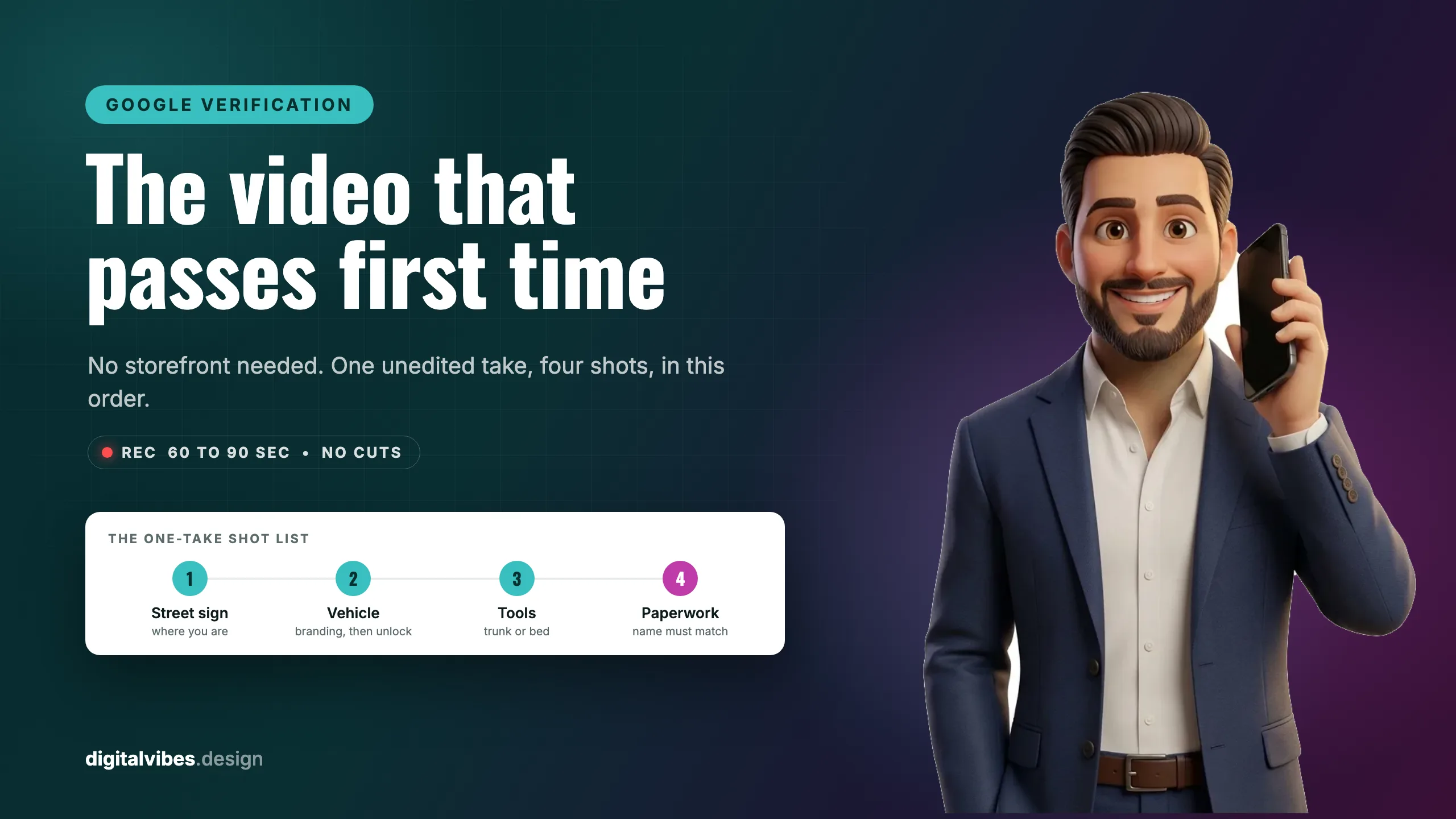
- Service-area businesses film a sequence, not a place: street sign, then branded vehicle, then tools, then paperwork. Google says videos that transition in that order “have the highest first-time pass rates.”
- You cannot pick this method. “Verification methods are automatically determined by Google and can’t be changed” (Google).
- In our experience the most common cause of a failed or escalated verification is not the footage, it is a business name on the profile that does not match the name on the license, the insurance certificate, or the LLC paperwork.
- Never stage a storefront. Hanging a temporary sign on a house is the fastest route from verification to suspension.
What Google is actually checking
Google’s video verification requirements break into three proofs, and every shot you film should be serving one of them:
| Proof | The question it answers | What satisfies it |
|---|---|---|
| Location | Are you operating where you claim? | Street signs, intersections, landmarks, your building |
| Operations | Is this a real business? | Tools, equipment, branded vehicle, uniforms, business cards |
| Management | Do you actually run it? | Opening something only an employee can open |
That third one is the proof people underfilm. Showing a van is operations. Unlocking the van with your own key, opening the door and starting it, is management. Google is explicit that it wants “things only an employee can access.”
If you have not reached this stage yet, or you are not sure which method you will be assigned, start with how to verify your business on Google, which covers all five methods and the timelines. This page is the deep dive on the one that makes people nervous.
The four rules that disqualify you before content matters
You can film a perfect sequence and still fail on a technicality. From Google’s own requirements:
- At least 30 seconds. Aim for 60 to 90. There is no penalty for longer.
- One continuous take. It must be “an unedited, unique, and complete recording with no breaks.” No cuts, no pauses, no stitching two clips together.
- Filmed live, in the app. “You must capture the footage live as pre-recorded videos aren’t allowed.” You cannot shoot it this morning and upload it this afternoon from your camera roll.
- Turn on location services. Google’s September guidance asks you to record with your device’s GPS on, inside your service area boundaries.
Practice the walk first with your own camera, watch it back, then delete it and film the real one live. The rehearsal is free; the retake is not.
The service-area shot list, in order
This is for businesses that travel to customers: plumbing, HVAC, electrical, landscaping, mobile detailing, consulting. Google published the sequence in its September 10, 2026 Small Business Bulletin, with input from Google Product Experts including Ben Fisher, Claudia Tomina, Kevin Pauls and Amy Toman.
1. Establish where you are. Park at a recognizable intersection or near a distinct landmark inside your service area. Start the recording outside and show the street signs. Google’s words: this “anchors your geographic location within your service territory.”
2. Show the mobile office. Film your vehicle with the business name and contact info on it, whether that is a wrap, decals or magnets. If your vehicle is unbranded, Google accepts other proof of identity instead: business cards, branded uniforms, professional equipment. An unbranded truck is not a disqualifier, it just means you have to carry the proof somewhere else in the frame.
3. Prove you control it, then show the trade. Unlock the vehicle with your key or fob, open the door, step in, start the ignition. Then open the trunk, bed or tool storage and show the specialized equipment: pipe threaders, pressure washers, diagnostic tools, branded shirts.
4. Show the paperwork. Have it staged on a clipboard or the front seat before you start filming. Business registration, contractor license, insurance certificate, or a utility bill in the legal business name. An active work order or invoice works too, with customer names, phone numbers and payment details blacked out first. If paperwork is thin, Google accepts logging into your dispatch app or business software on a laptop instead.
Real estate agents get a specific carve-out: Google says filming on site at an active listing, with business cards, is acceptable.
The storefront version, which we film differently
If you have a building customers can walk into, the sequence changes, and this is the order we use on every storefront profile we set up.
Start outside, on the street, exactly like the service-area version. Then walk to the building and show the entrance. Then, and this is the shot that carries the whole video, record the owner unlocking the front door with a key and walking in. If your business name or logo is on that door or window, you have just satisfied location, operations and management in a single continuous movement, which is the strongest thirty seconds of footage you can hand Google.
Keep rolling as you step inside. Film the interior: the counter, the workspace, the equipment, the back room, the register. Interior access is the storefront equivalent of unlocking the van.
The structural logic is identical for both business types. Outside to inside, public to private, anyone-could-film-this to only-the-owner-could-film-this. Google is watching that progression more than it is watching your production quality.
The thing that fails more videos than bad footage
Here is what we have learned setting up and verifying Google Business Profiles: the footage is rarely the problem. The mismatch is.
Use the exact business name from your legal documents, everywhere. Not the name you trade under, not a shortened version, not the version with the city bolted on for SEO. The name on your Business Profile should be character-for-character the name on your entity filing, and that same name should appear on your license, your insurance certificate, your invoices and your vehicle.
We have had Google ask for tax documents, LLC paperwork and other entity documents to confirm a business is what it claims to be. When that request comes, every document you send is compared against the profile. If your LLC is registered as one thing and your profile says another, you are now explaining a discrepancy instead of getting verified.
The same discipline applies to your phone number and address. Google’s September bulletin makes the point in its own checklist: make sure “your business name, service area, phone number, and category in GBP match your physical branding, licenses, and invoices” before you tap record.
Google shipped something in the same bulletin that helps here: address auto-complete is now built into the Business Profile editor globally, on mobile and desktop. Start typing in Address line 1 and pick the matching address from the dropdown rather than typing it freehand. It exists specifically to stop “formatting mistakes” and map pin drift, and a clean address is one less thing to reconcile later.
There is a ranking reason to care too, not just a verification one. In Whitespark’s 2026 expert survey, a false address is the single biggest suspension risk in local search, and showing a street address you do not actually staff is not far behind. We covered the full list in the 2026 local ranking factors. Verification and suspension are the same fields being checked twice.
What to keep out of frame
Google is direct about this. Your video “must not include” any of the following:
- Sensitive numbers: bank account, tax, or ID numbers
- Private information about you or anyone else
- Other people’s faces
Three more from the September checklist that matter for service-area businesses in particular:
- Keep residential addresses hidden. If you work from home, do not film your house number or your street.
- Never hang a temporary sign on a home to simulate a storefront. This is the one that turns a verification problem into a suspension problem.
- Avoid bystanders and other vehicles’ license plates. Park somewhere quiet.
After you upload
The wait is the same regardless of method: Google says the review “can take up to 5 business days.”
If it fails, you can record a new one. Google does not publish a cap on attempts, but treat every attempt as if it is scarce, because repeated failures tend to attract a manual review rather than an automatic pass.
Your footage does not live on Google’s servers forever: “You can delete your verification video anytime. If you don’t, Google will delete it later.”
Why videos get rejected
In rough order of how often we see each one:
- Name or document mismatch. Covered above. This is the big one.
- The video was edited or paused. Even a brief stop can read as a break in a recording that has to be “complete… with no breaks.”
- No proof of management. The owner filmed the van and the tools but never unlocked anything. Location and operations without management is two proofs out of three.
- Shot outside the service area. The GPS and the footage disagree about where you are.
- Too short or too dark. Thirty seconds is the floor, not the target, and a tool chest filmed at dusk proves nothing.
- Pre-recorded. Filmed on the camera app, then uploaded. Google’s system can tell.
If you are stuck after a couple of attempts, Google points you to Ask Google Help in the Business Profile Help Center, or to requesting a live video verification, where you walk a support agent through the same proof in real time instead of filming it.
Frequently asked questions
Can I verify a Google Business Profile without a storefront?
Yes. Google’s own words: “You don’t need a commercial storefront to get verified.” A service-area business proves itself with location, vehicle, tools and paperwork instead of a building. You hide your home address and list the areas you serve.
How long does the verification video need to be?
At least 30 seconds, per Google’s requirements. We aim for 60 to 90, because the four-shot sequence rarely fits comfortably in thirty and there is no downside to more footage.
Can I pick video verification, or avoid it?
No. “Verification methods are automatically determined by Google and can’t be changed.” Which method you get depends on your business type and category.
What if my work vehicle has no branding?
It is not a blocker. Google accepts other proof of identity in place of a wrap or decals: business cards, branded uniforms, professional equipment. Show more of the other three proofs to compensate.
Does Google ever ask for legal documents?
In our experience, yes. We have seen requests for tax documents, LLC paperwork and other entity documents. Everything you submit gets compared to the profile, which is why the business name has to match your legal filings exactly, before you ever start recording.
How long does Google take to review the video?
“This process can take up to 5 business days,” which is the same review every verification method ends in.
The bottom line
Film one unbroken take, outside to inside, public to private. For a service-area business that is street sign, then branded vehicle, then unlocking it, then tools, then paperwork. For a storefront it is the street, then the entrance, then the owner opening the door with a key, then the interior. Sixty to ninety seconds, live, in the app, with GPS on.
Then do the part that happens before you press record, which is the part that actually decides the outcome: make your business name identical across your profile, your entity filing, your license, your insurance, your invoices and your signage. Google is not grading your camera work. It is checking whether a real, consistently documented business exists at the location you claimed.
If you want the profile set up correctly from the start, including the name, category and address decisions that verification will test, that is what our $650 one-time optimization covers. Already verified and wondering why the phone is quiet? Run the free 60-second GBP scan and then read the five reasons a business does not show up on Google.