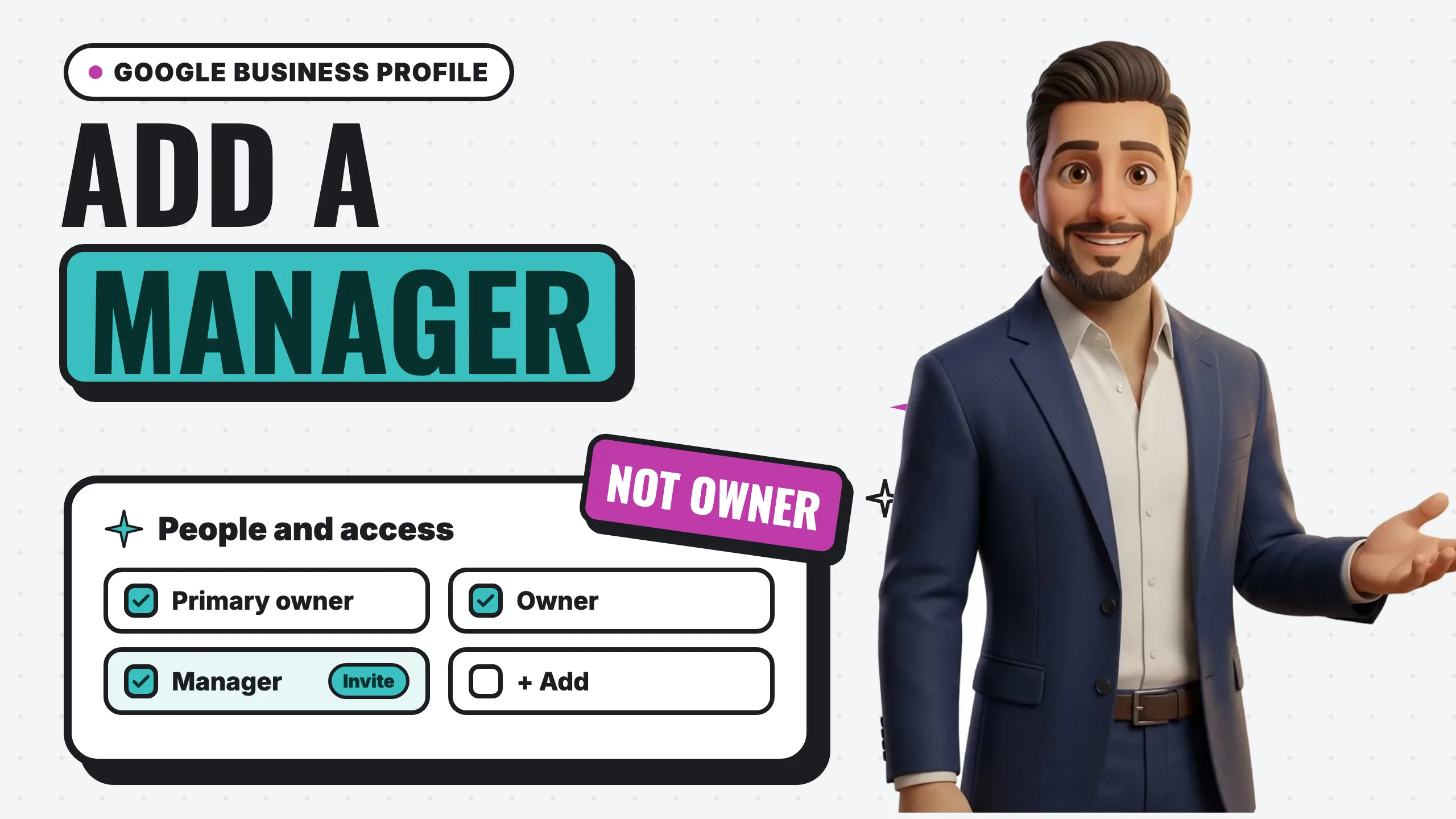
To add a manager to your Google Business Profile, go to your Business Profile, select More, then Business Profile settings, then People and access. Select Add, enter the person’s email address, choose Owner or Manager under “Access,” and select Invite. That is the whole process. The part worth slowing down for is the role you pick, because the two are not equal: an owner can remove you, and a manager cannot.
That difference matters most on the day you hire someone. When a small business brings on an agency, a web designer or a marketing freelancer, the first thing they ask for is access to the Google Business Profile. The safe default is to invite them as a Manager, keep primary ownership yourself, and remove them when the work ends. Below are Google’s steps for each of those moves, quoted from Google’s own help center, plus what each role can and cannot do.
Key takeaways
- Add users from More > Business Profile settings > People and access > Add, then pick Owner or Manager and select Invite (Google).
- Managers can do almost everything owners can. Google says the only exception is “they can’t add or remove users or remove the profile.”
- Giving an agency or designer Manager access, never Owner, keeps you in control of who else gets in and whether the profile exists at all.
- A profile can have several owners but “only one primary owner,” and only the primary owner can transfer that role (Google).
- New owners and managers wait 7 days before they can delete a profile, remove other users, or transfer primary ownership.
- When you remove someone, “their replies to reviews, posts, comments, and other actions stay on the Business Profile.”
How do I access my Google Business Profile?
Before you can add anyone, you need to be signed in to the right Google Account. Google is explicit: “To find your profile, you must sign in to the Google Account associated with it” (Google).
Once you are signed in, Google lists three ways in:
- On Google Search, search for your business’s name and city, or search
my business. - On Google Maps, search for your business’s name and city.
- In the Google Maps app, tap Business at the bottom right. If you manage more than one business, tap the down arrow at the top and pick the one you want.
You can also go straight to business.google.com, which is the link Google’s own step-by-step instructions use as “Go to your Business Profile.”
If none of those show you a profile, the problem is not access, it is that the profile is unverified, owned by a different Google Account, or missing. Our guide to how to verify your business on Google covers the claim and verification side, and why your business is not showing up on Google walks through the other causes.
How to add a manager, owner or user to your Google Business Profile
Google’s instructions for adding someone are six steps (Google):
- “Go to your Business Profile.”
- “Select More > Business Profile settings > People and access.”
- “At the top left, select Add.”
- “Enter an email address.”
- “Under ‘Access,’ select Owner or Manager.”
- “Select Invite.”
A few details from the same page that save confusion later:
- The other person has to accept. Google says invited users “can accept the invite and become users right away. If they accept, you’ll get an email.”
- Pending invites live on the same screen. “You can find all current users and pending invites in the ‘People and access’ page.” To cancel one, find the person under the PENDING section and select Cancel invitation.
- Everyone needs their own Google Account. Google’s tip is that “to access and manage Business Profiles without the need to share your password, each user needs their own Google Account.” The email you enter should be one that is tied to a Google Account, or the person will need to create one (Google).
- You cannot add a group. “You can’t add Google Groups as managers or owners of profiles.” Each person gets invited individually.
- Users can see each other. “Users in the account can find names and email addresses of the owners and managers.” Worth knowing before you invite someone outside the business.
Whether you search for “add user,” “add manager” or “add someone” to your Google Business Profile, this is the same screen and the same six steps. Google calls everyone a user; the only real choice is the role.
Owner vs. manager: what each role can do
Google defines two roles. Owners have “full control over the profile. You can add or remove users, manage profile info, and even delete the profile.” Managers “have mostly the same access to the profile as owners. The only exception is they can’t add or remove users or remove the profile” (Google).
Here is how Google’s capability table breaks down for the tasks most businesses care about:
| Task | Owner | Manager |
|---|---|---|
| Add and remove users | Yes | No |
| Remove the Business Profile | Yes | No |
| Edit main business info, like hours and address | Yes | Yes |
| Edit phone number, services and attributes | Yes | Yes |
| Close a location, edit the name, category or website | Yes | Yes |
| Create, manage and publish posts | Yes | Yes |
| Add, delete and edit photos and logos | Yes | Yes |
| Respond to reviews | Yes | Yes |
| Use Messaging | Yes | Yes |
| Download insights | Yes | Yes |
| Manage Google Ads account links | Yes | Yes |
Source: Google Business Profile Help, “Manage your Business Profile owners & managers.”
Read that table again with a hiring decision in mind. A manager can do every piece of day-to-day work: update hours, publish posts, upload photos, answer reviews, pull insights. What a manager cannot do is decide who else has access or make the profile disappear. Those two powers are exactly the ones you want to keep in-house.
There is also a third tier inside “owner.” Google says “a Business Profile can have multiple owners but only one primary owner,” and the primary owner is the only one who can hand that title to someone else (Google).
Giving an agency or web designer access the safe way
Hiring help with your profile is normal and usually a good call: posts, photos and review replies are steady work, and handing them to someone who does it every day frees you up to run the business. The access step just needs to be set up so that the relationship can end cleanly whenever it ends, for any reason.
Here is the setup we recommend:
- Keep yourself as the primary owner. Use a Google Account the business controls, not a personal account belonging to a former employee or the person who happened to set things up years ago.
- Invite the agency or designer as a Manager. Use the six steps above and pick Manager. They can do all the work in the table; they cannot add other people or remove the profile.
- Invite a named person’s email, not a shared login. Google’s whole user system exists so that nobody has to share a password. If someone asks for your Google password to “get into” your profile, send them an invite instead.
- Write down who has access. Once a quarter, open People and access and check that every name on the list is someone who should still be there.
- Remove access when the work ends. The steps are below.
When is Owner access reasonable? If you are bringing on a business partner, or a family member who will co-run the business, Owner makes sense, because those people should be able to manage users if you are unavailable. For an outside vendor, Manager covers everything they need to do the job.
If an agency tells you they need Owner access, it is fair to ask which specific task requires it. Based on Google’s table, the only owner-only actions are managing users and removing the profile.
How to change someone’s role
If you invited someone as an Owner and want to step them down to Manager, or the reverse, Google’s steps are (Google):
- “Go to your Business Profile.”
- “Select More > Business Profile settings > People and access.”
- “Select the user you’d like to change access for.”
- “Next to ‘Access,’ select Edit.”
- “Select the new role > Save.”
Google adds that “only owners can change access roles for other owners and managers.”
How to remove a manager or owner from your Google Business Profile
When a vendor relationship ends, an employee leaves, or you simply do not recognize a name on the list, Google’s removal steps are:
- “Go to your Business Profile.”
- “Select More > Business Profile settings > People and access.”
- “Select the user you’d like to remove > Remove person.”
What happens next, in Google’s words: “When you remove a user, they get an email. They can’t change business info or do admin tasks, but their replies to reviews, posts, comments, and other actions stay on the Business Profile” (Google).
That last part is reassuring. Removing your old agency does not wipe the review replies or posts they published on your behalf. The work stays; only their access goes.
Two limits to know:
- Only owners can remove users. “If you can’t select the user, it might mean you only have manager-level access.”
- New owners wait a week. If you were added recently, removing other owners or managers may throw an error until your first 7 days are up (more on that below).
How to remove yourself from a profile
If you are the agency, designer or former employee, you can step off a profile on your own:
- “Go to your Business Profile.”
- “Select More > Business Profile settings > People and access.”
- “Select yourself from the list of users > Stop managing > Confirm.”
The catch is for primary owners. Google says: “If you’re the primary owner, you can’t remove yourself until after you transfer primary ownership to someone else.” And the same rule as above applies to your history: “your past replies to reviews, posts, comments, and other actions will stay on the Business Profile.”
How to transfer primary ownership
Transferring primary ownership is the step for selling a business, handing it to a family member, or moving the profile from a personal account to a proper business account. Google flags why it matters: transferring primary ownership “ensures all of your business info, like reviews, are maintained” (Google). That is the right way to hand over a profile; creating a fresh one would start from zero.
The new primary owner has to already be on the profile. Google’s tip: “A profile must have at least one other owner or manager to transfer primary owner access to.” So the order is: add them first with the six steps above, wait for them to accept, then transfer.
Google’s transfer steps:
- “Go to your Business Profile.”
- “Select More > Business Profile settings > People and access.”
- “Select the user you’d like to transfer primary ownership to.”
- “Next to ‘Access,’ select Edit.”
- “Select Primary owner > Save.”
Google notes that “only the primary owner can transfer primary ownership.” If you are a regular owner and the primary owner is unreachable, this button will not work for you.
The 7-day waiting period for new owners and managers
This trips up a lot of handovers. Google says that when you become an owner or manager, “you have to wait 7 days before you can manage some profile features.” During that window, you will get an error if you try to (Google):
- Delete or undelete a profile
- Remove other owners or managers
- Transfer primary ownership
Practically, plan any handover a week ahead. If you are buying a business and the seller is adding you so they can transfer primary ownership, the seller can add you today, but you will not be able to remove them or make further ownership changes until the week is up. Google’s tip puts the flip side plainly: “If an existing owner tries to make someone else the primary owner in their first 7 days, they’ll get an error.”
Day-to-day work (posts, photos, review replies) is not on that restricted list, so a new manager can start on those immediately.
When someone else owns your profile
Sometimes the problem is the reverse: you own the business, but a former employee, an old marketing company, or a previous owner controls the profile, and you cannot reach them. Google has a separate process for this called requesting ownership (Google):
- “Go to business.google.com/add.”
- “Enter the name and address of your business.”
- “Choose your business from the list.” You will see a message that says “Someone else may manage this Business Profile.”
- “Select Request Access.”
- “Fill out the form.”
- “Select Submit.”
The current owner is emailed and “has 3 days to respond.” If they approve, you can manage the profile. If they deny it, you can appeal. If they do not respond after 3 days, “you may have the option to claim the profile,” which means verifying it yourself. Google adds that “the option to claim a profile isn’t always available.”
For service-area businesses with no storefront, Google routes this through support instead: contact Google and enter “Transfer ownership of listing” as the issue. If you end up re-verifying, our walkthrough of Google Business Profile video verification covers what Google asks to see on camera.
Frequently asked questions
Can a manager delete my Google Business Profile?
No. Google lists “Remove Business Profiles” as an owner-only capability, and says managers “can’t add or remove users or remove the profile.” That is the main reason to give outside help the Manager role.
Can a manager respond to reviews and post updates?
Yes. Google’s table gives managers the same access as owners for responding to reviews, creating and publishing posts, editing photos, editing hours and address, and downloading insights. If you are handing review replies to someone, our guide on how to respond to Google reviews is worth sending them.
Does the person I invite need a Gmail address?
They need a Google Account. Google’s tip is that “each user needs their own Google Account” so nobody has to share a password. It does not have to be Gmail: Google says “you don’t need to have a Gmail address to create a Google Account” and you can use an existing non-Gmail address instead (Google).
How many owners and managers can a profile have?
Google says a profile “can have multiple owners but only one primary owner.” Google’s help page on users does not publish a maximum number of managers, so we will not guess at one.
What happens to my agency’s review replies and posts if I remove them?
They stay. Google says a removed user’s “replies to reviews, posts, comments, and other actions stay on the Business Profile.” Removing a person ends their access, not their past work.
Can I add someone from the Google Maps app?
Google’s help page for adding owners and managers documents the path through your Business Profile (More > Business Profile settings > People and access). It does not publish separate Maps app steps for this task, so the most reliable route is to sign in at business.google.com on a phone or computer and follow the steps above.
I added someone and they never got the invite. What now?
Open People and access and look under PENDING. If the invite is there, confirm the email address is the one tied to their Google Account. You can select Cancel invitation and send a fresh one to the corrected address.
The bottom line
Adding a user to your Google Business Profile takes six steps, ending in People and access. The decision that matters is the role. Keep primary ownership on an account the business controls, give agencies, designers and staff the Manager role, and check the user list every few months so former helpers do not linger. Plan ownership transfers a week ahead because of Google’s 7-day rule, and add the new owner before you try to hand over the primary role.
Not sure what state your profile is in once the right people have access? Our free 60-second GBP scan grades your profile against the businesses ranking around you, no signup. If you want to understand what actually moves your position once the profile is in good hands, read how to rank higher on Google Maps. And if you would rather hand the day-to-day work to us, our monthly Google Business Profile management plan covers weekly posts, fresh photos and review replies, and a one-time profile optimization handles the setup.