Verifying your business on Google takes five short steps: add your business at business.google.com/add, or claim the listing Google already has for it, clear Google’s name-and-address rules, complete the verification method Google assigns you (phone, email, video, live call, or postcard), and then wait out a review that “can take up to 5 business days.” One profile covers both Google Search and Google Maps, so this same process is also how you add your business to Google Maps.
The steps are simple. The traps are not, and most of them are timing: postcards that take two weeks, codes that die at day 30, and edits that quietly invalidate the code you are waiting on. Everything below is quoted from Google’s own documentation, retrieved August 31, 2026.
Key takeaways
- You do not choose how to verify. Google is explicit: “Verification methods are automatically determined by Google and can’t be changed.”
- After you finish the steps, “verification review can take up to 5 business days” (Google).
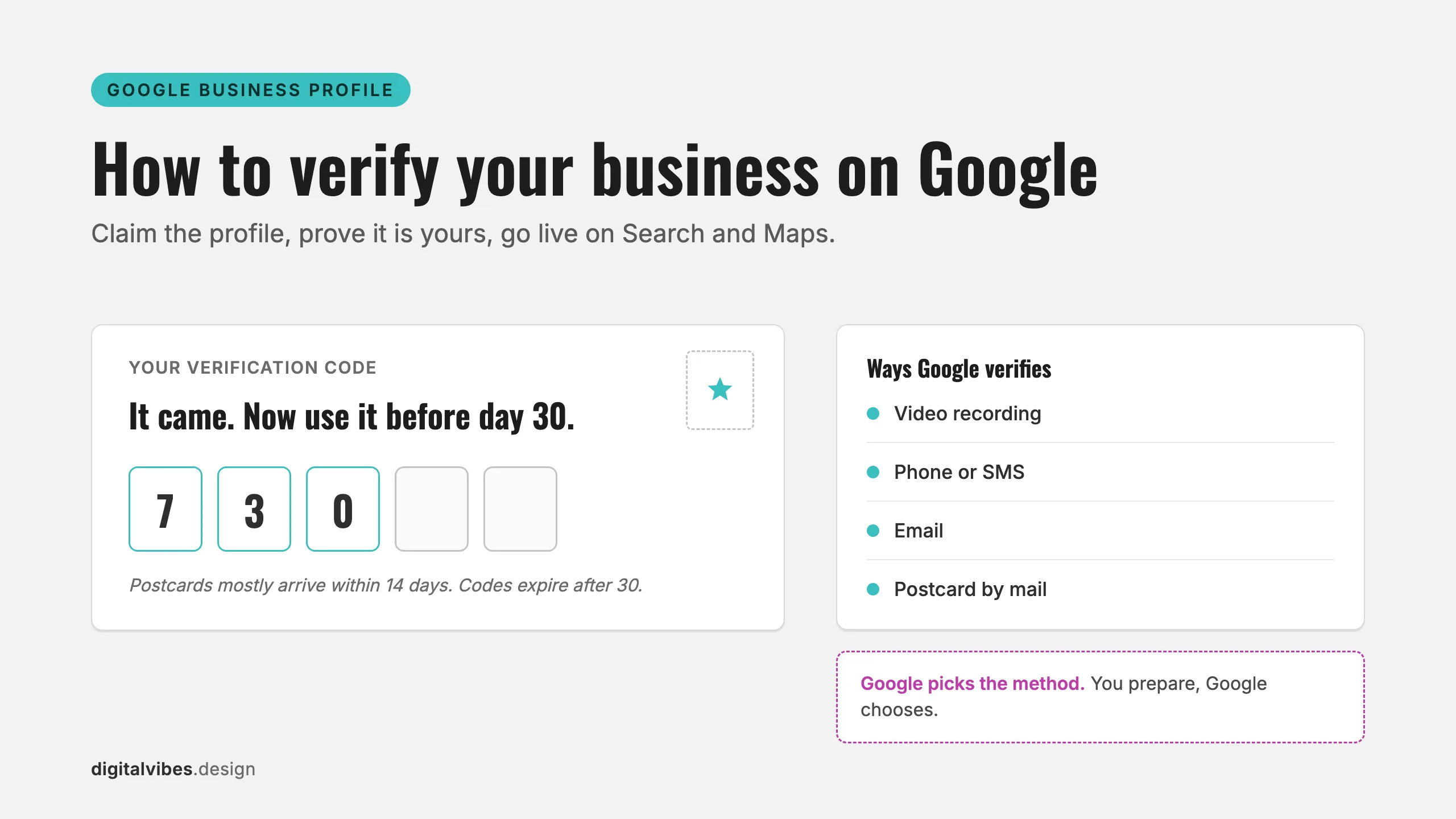
- Postcard route: “Most codes arrive within 14 days” and “Verification codes expire after 30 days.”
- The payoff is real. Google’s own figures: customers are “2.7 times more likely to consider a business reputable” when they find a complete profile, “70% more likely to visit,” and “50% more likely to consider purchasing.”
Step 1: Add your business to Google and Google Maps
There is one profile, not two. The Business Profile you create shows up on Search and on Maps together, so ignore anything that suggests registering separately for each.
The direct route, from Google’s own instructions: “Go to business.google.com/add,” click “Add your business to Google,” and follow the on-screen prompts for your name, category, address or service area, and contact details.
You can also start from the map itself. On a computer, Google’s steps are: open Google Maps, “Search for the address of the missing place,” and click “Add a missing place.” In the Maps mobile app the same flow lives under the contribute and add-a-place options. Either way, Google routes business owners into the same free Business Profile setup.
One warning before you type: enter your real name and address exactly, because you will be locked into them during verification (Step 4 explains why).
Step 2: Or claim the profile that already exists
Google Maps often already has a listing for an established business, built from public data, even though nobody manages it. If searching Maps for your business finds one, do not create a duplicate. Google’s claim flow: open Google Maps, find your business, “Select Claim this business,” then “Manage now.”
Claiming an existing listing beats starting fresh: the reviews and history already attached to it stay with you.
Step 3: Clear the two rules that quietly block verification
Google’s representation guidelines reject two things owners do in good faith:
Decorating the name. “Your name should reflect your business’s real-world name, as used consistently on your storefront, website, stationery, and as known to customers.” No city names, no “best,” no service keywords bolted on. The name field holds your name; the categories and services fields do the describing.
Using an address you do not really work from. “P.O. boxes or mailboxes located at remote locations aren’t acceptable,” and a rented mailing address you do not operate out of, “also known as a virtual office, that location isn’t eligible for a Business Profile.”
Eligibility itself is one sentence: “If your business either has a physical location that customers can visit, or travels to customers where they are, you can create a Business Profile on Google.” Mobile and service-area businesses qualify; you hide the home address and list your service areas instead.
Step 4: Pass the verification method Google hands you
In your profile, select “Get verified.” What happens next is not your choice: “Verification methods are automatically determined by Google and can’t be changed” (Google). Depending on your business you will see phone or text, email, a video recording, a live video call, or the postcard.
Phone, text, and email are self-explanatory and near-instant. The two that ruin people’s week are the other two.
| Method | The wait | Watch out for |
|---|---|---|
| Phone or text | Minutes, plus the final review | Must be reachable at the number on the profile |
| Minutes, plus the final review | Goes to the address on file | |
| Video recording | Upload, then the review | 30+ seconds, live, unedited; show location, tools, and access |
| Live video call | The call itself, then the review | Same proof, shown to a person in real time |
| Postcard | Up to 14 days of mail, then the review | Codes die at day 30; do not edit the profile or re-request |
Every route ends in the same “up to 5 business days” review, so the method mostly decides how long the front half takes.
If Google asks for video
The video route is Google’s favorite for service businesses, and it has strict rules. The recording must be “at least 30 seconds long,” “unedited, unique, and complete… with no breaks,” captured on a mobile device through the Business Profile itself, and shot live, because “pre-recorded videos aren’t allowed.”
What to show is spelled out in three parts: your location (“street signs, nearby landmarks, or other identifiers at your business address”), your operations (“the professional tools, equipment, or products you use for work,” including “specialized machinery, your workspace, business cards, or branded apparel”), and proof you actually run the place (“things only an employee can access, like opening a cash register, kitchen, storage room,” or “unlocking a van that has your business branding”).
Just as important is what to leave out: “Sensitive info like bank account, tax, or ID numbers,” private information, and “Other people’s faces.” And the footage does not live forever: “You can delete your verification video anytime. If you don’t, Google will delete it later.”
The shot-by-shot version, for service-area businesses and storefronts, is in the video verification shot list.
If Google mails you a postcard
The postcard is pure patience, and Google publishes the numbers: “Most codes arrive within 14 days,” and “Verification codes expire after 30 days.” While you wait, two don’ts from the same doc matter more than anything you can do:
- “Do not request a new code. If you do, we invalidate the code in the mail and send a new one.” Requesting again on day 10 means the postcard arriving on day 12 is already dead.
- “Do not edit your business name, address, or category on your Business Profile. If you do, the code we sent you won’t work.” Polish the photos while you wait; leave those three fields alone.
If the window passes with no postcard, Google notes that “Verification through postcard isn’t available for all businesses” and says to try your other options or contact support.
Step 5: The wait after the wait
Entering the code is not the finish line. Google reviews everything after: “verification review can take up to 5 business days” (Google). And even once you are live, a brand-new profile climbs slowly: “Rankings for new businesses can take up to a month to appear in search results” (Google).
Plan around the whole pipeline, not just the code entry. A restaurant opening October 1 should be creating its profile in August, not on opening day.
After verification: the profile becomes a contest
Verification gets you ownership; Google’s words: “you gain ownership of your Business Profile and can make sure your business info is accurate.” What it does not get you is customers. That comes from completeness, and Google publishes its own numbers on the gap (Google): a complete profile makes customers “2.7 times more likely to consider a business reputable,” “70% more likely to visit,” and “50% more likely to consider purchasing.”
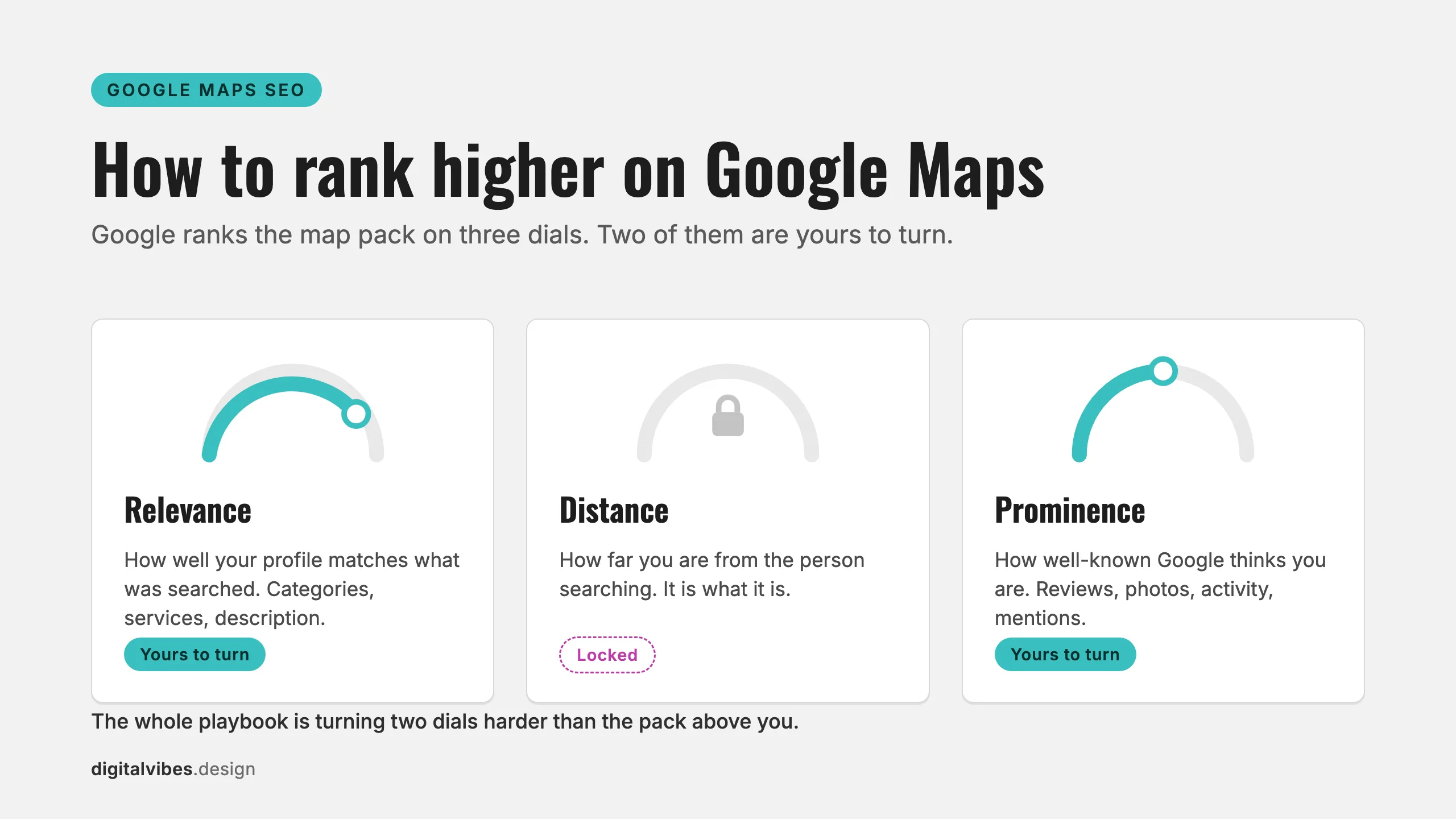
So once the badge lands, fill everything: categories, services, hours, photos, and a steady stream of reviews. If your shiny verified profile still is not surfacing for the searches that matter, that is a ranking problem, not a verification problem, and we wrote the full diagnostic for that.
To see where a freshly verified profile actually stands, run our free 60-second GBP scan; it grades your public listing against what is ranking around you, no signup. And if you would rather hand off the whole completeness job, our Google Business Profile optimization does every field, the photos, and the review engine for $650, one time.
Frequently asked questions
How long does it take to verify a business on Google?
Phone, text, and email verification finish in minutes. The postcard adds up to 14 days of mail time, and every route ends with a review that can take up to 5 business days. Worst case on the postcard path, you are roughly three weeks from signup to a live profile, before rankings settle in.
Does it cost anything to add my business to Google?
No. The Business Profile is free, verification is free, and showing up on Search and Maps is free. Related: Google also states “There’s no way to request or pay for a better local ranking on Google,” so anyone selling guaranteed placement is selling smoke. What ranking higher actually costs is labor, and we published those numbers too.
My postcard never arrived. Now what?
First, confirm you did not accidentally kill it: requesting a new code invalidates the one in the mail, and editing your name, address, or category breaks it too. If the 14-day window is well past, request a fresh code and leave the profile untouched while you wait. Google also notes the postcard “isn’t available for all businesses,” so check whether another method is offered, and contact Business Profile support if nothing works.
Can I verify a business without a storefront?
Yes. Google’s eligibility rule covers you if your business “travels to customers where they are.” Set the profile up as a service-area business: hide your home address and list the areas you serve. What you cannot use is a P.O. box or a virtual office address you do not actually work from.
The bottom line
Add or claim the profile at business.google.com/add, keep the name and address honest, complete whichever verification Google assigns, and respect the clocks: 14 days for postcards, 30 days before codes expire, 5 business days of review, and up to a month before a new profile ranks. Do it once, correctly, and Google Search and Maps both come with it.
Then make the profile worth finding. Scan it free in 60 seconds and see exactly what to fix first.